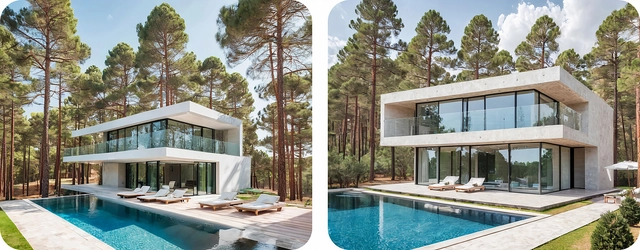
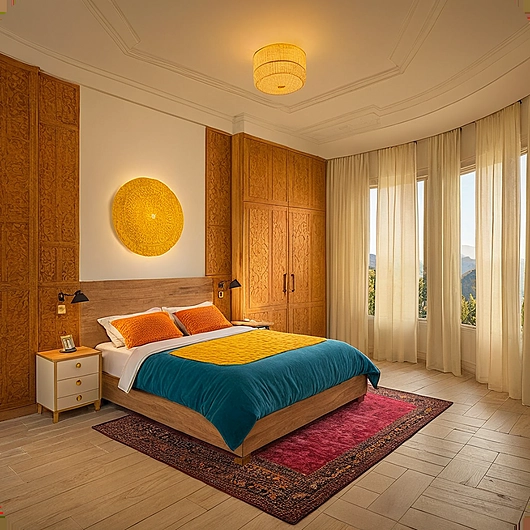
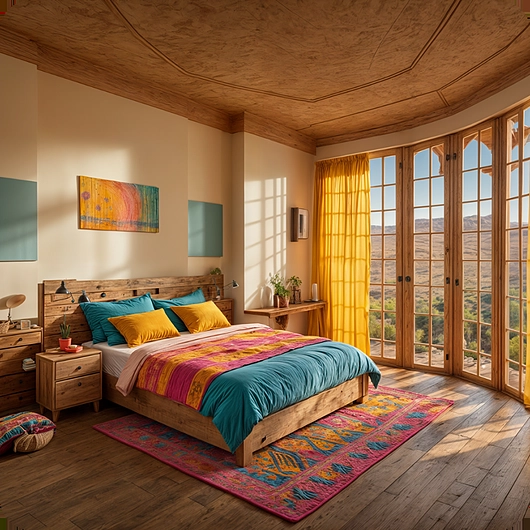
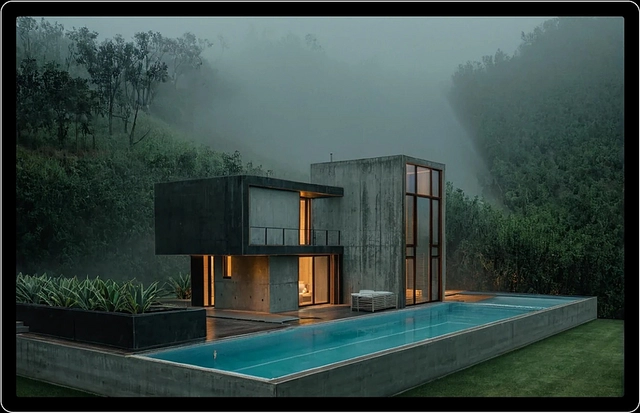
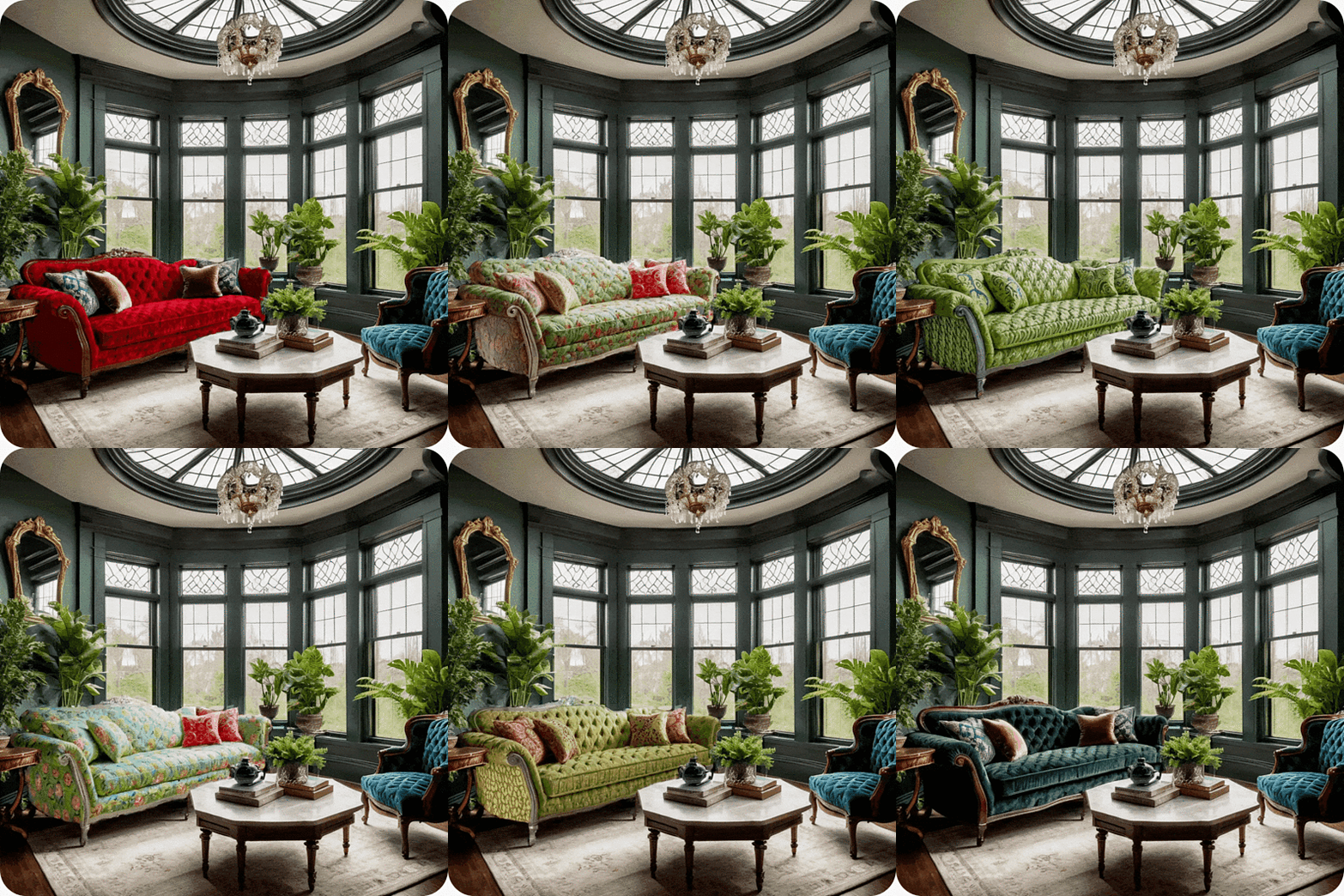
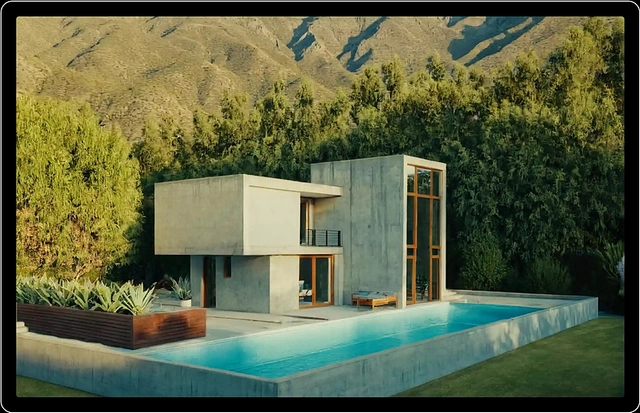
Gendo is a browser-based platform that uses Machine Learning and artificial intelligence tools to transform text and graphic cues into architectural visualizations for architecture projects in a fraction of the time it traditionally takes an architect.
Gendo has four key features that define the way in which an idea is generated:
- Design to Image
- Generative Editing
- Style transfer
- Text to image
Design to image, Generative Editing, and Style transfer are tools that modify an original sketch or model provided by the user to generate photo-realistic images of their idea. Text to image is a tool that takes an original idea provided by the user as text and turns it into a photorealistic rendering.
Every Gendo tool is fed instructions through a “prompt”, a text description of what the user wants to see, with details like subject, color, mood, materials, lighting, style, and composition. The more descriptive a prompt is, the more information the tool will have to work with.
Gendo prompts are composed of five main categories:
[Main subject], [Context & Key features], [Atmosphere & Lighting], [Style], [Extra Keywords]
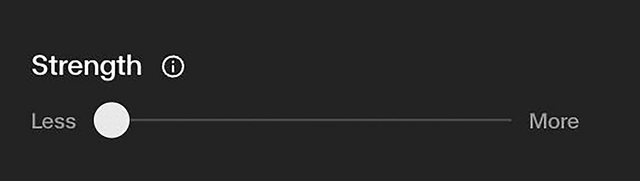
Users should avoid superlative or subjective descriptions on their prompts, as a more technical description will provide clearer guidelines for the AI. Every tool has specific settings that the user can manually adjust to change the degree to which the AI can deviate from the user’s original image or inspiration.
 |
| | Higher Values preserve the original composition more strictly but may also degrade image quality. | Lower Values allow for more stylistic freedom |
To learn more about prompts and how to make the best use of Gendo with them, visit the guide How to Apply the Main Principles of Prompting?
Design to Image - Render tool
This tool takes a design intent and elevates it into a polished, high-quality image. It Is ideal for transforming CAD models or conceptual sketches into hero images.
Best use case: generate a visually enhanced version of a design with improved lighting, textures, and composition.
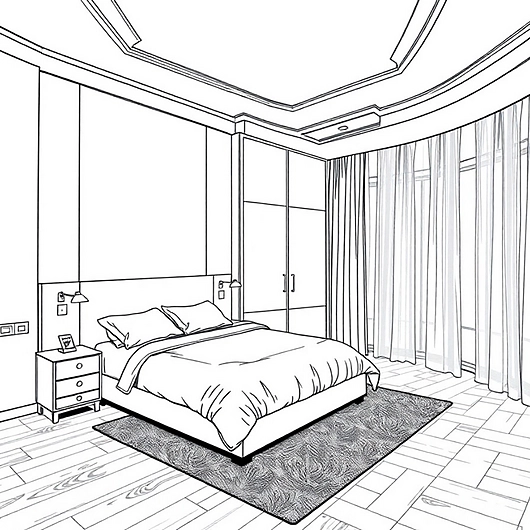
The prompt for Design to Image will act according to the image uploaded for it, so aspects like room layout and composition can rely on the sketch, while the style of the furniture, the lighting, textures, room finishes and colors, will be generated through the details of the prompt or through the composition settings of the tool.
An ideal input image offers a clear view of the relevant elements to the composition, such as:
An ideal prompt will:
- describe each object in detail,
- Use precise, technical, or artistic terms relevant to architecture,
- Include colors and materials for every element in the input image.
| |
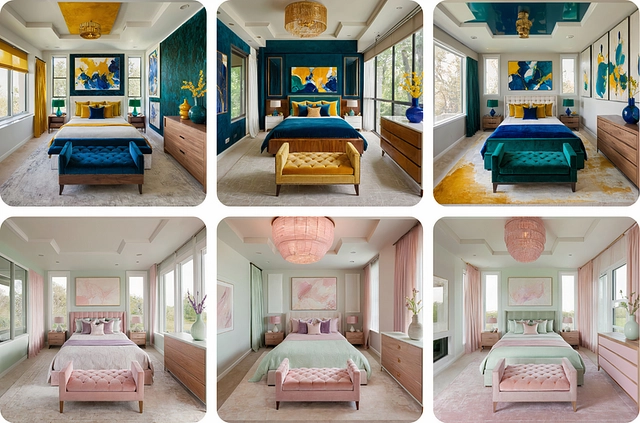
a modern bedroom, a central bed with a high headboard, two wooden nightstands, each topped with a green lamp, a framed artwork with pink abstract lines, a small wooden bench, a large window with green velvet curtains, elegance, natural light, photorealistic, cinematic photography |
Users can adjust settings such as “Composition”, “edges”, “Depth,” and “Color adherence.” These settings define how closely the output aligns with the input while preserving key design elements.
When the user feeds Gendo a pencil sketch, for example, using lower values on the “Color adherence” setting will let the AI suggest a color palette, whereas higher values would otherwise prompt it to stick to a grayscale image.
Design to Image is designed to preserve the core elements of an input design, and it does not generate additional elements, such as people or trees. When beginning to edit a picture, users should start with low-value settings, modifying textures and styles while retaining recognizable forms.
Generative Editing - Material Tool
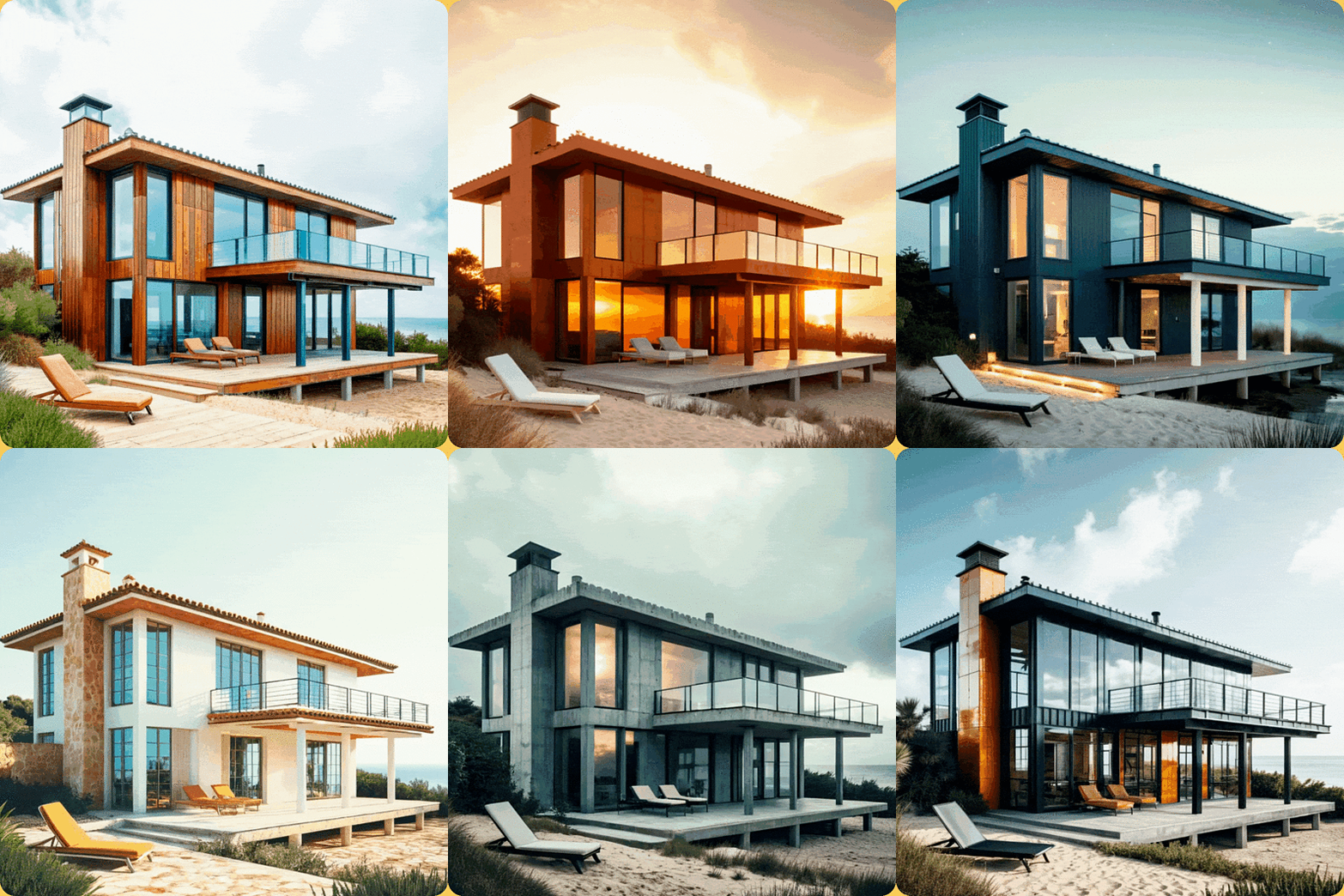
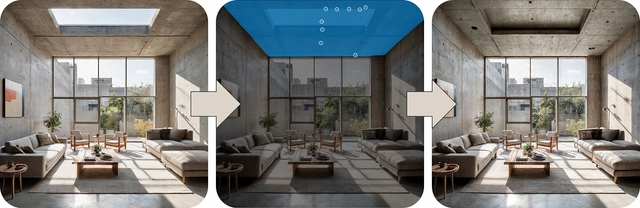
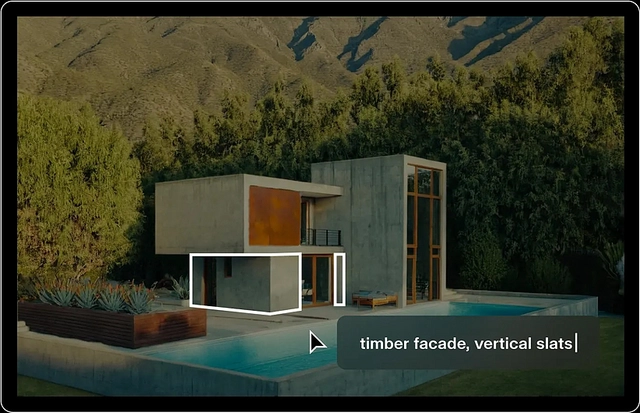
This tool allows users to modify only specific aspects of their image, such as materials and colors, by simply selecting an area or an object on the source picture, and then typing what needs to be changed about it.
Best use case: Change the material of a specific area or object.
Users must upload an image from Canvas to start with and select the area they want to change.
Formula for Material Tool
The prompt for Material Tool will only affect the selected area within the image, and users can help it by uploading a reference image for the texture, color or effect they want to see on the selected surface.
Users can adjust the Composition settings to prompt a higher or lower resemblance between the original surface and the final product.
| Input | |
timber facade, vertical slats | |
| Result | |
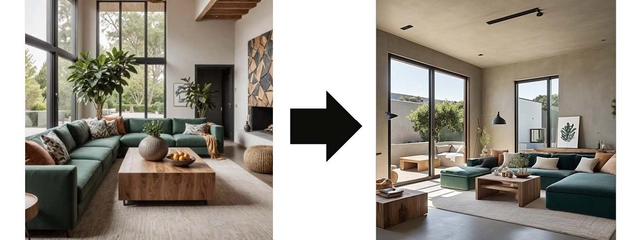
For the best results with the Material tool, users can try uploading a reference image. This helps the AI better understand textures and details, giving us more accurate and realistic outcomes:
| |
bright orange wall paper, patterned |
Style Transfer - Image transformation.
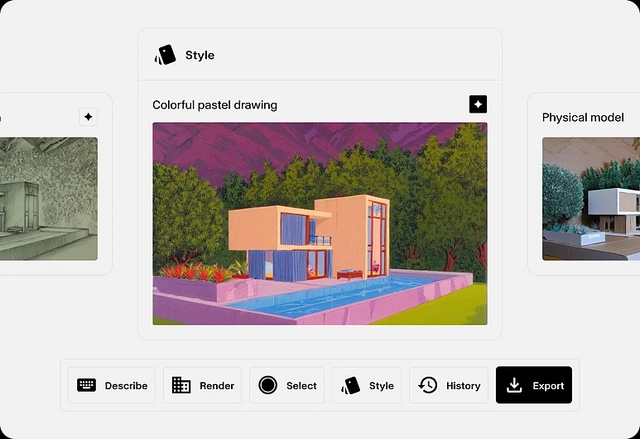
This tool applies a specific artistic or visual style to an existing design while preserving its content and composition. It allows users to experiment with different artistic expressions, ensuring the core structure of the image remains intact while transforming its overall aesthetic.
Best use case: transform 3D sketches into high-quality architectural photography.
Users must upload an image and apply short prompts to the generator, focusing on the style of the representation. The Style tool comes with a variety of preset styles to choose from, allowing for quick and easy transformations. However, custom styles can also be prompted for specific artistic directions.
| | | |
| | Physical model | Pencil sketch |
| | | |
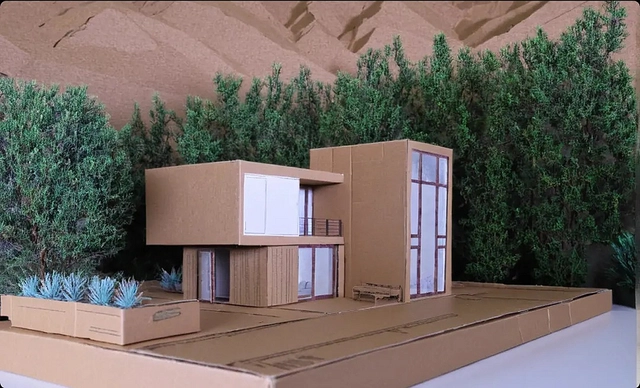
Watercolor drawing | Cardboard model | Colorful pastel drawing |
Text to Image - Describe
The most generative Gendo tool, it is designed to help users visualize their ideas based on text descriptions. It generates an image based on the prompt text, helping the user to refine and develop their vision. Particularly helpful during the early stages of a project, it provides visual inspiration and allows one to explore different concepts before choosing a style and finalizing a design.
Best use case: Visualize architectural concepts for inspiration.
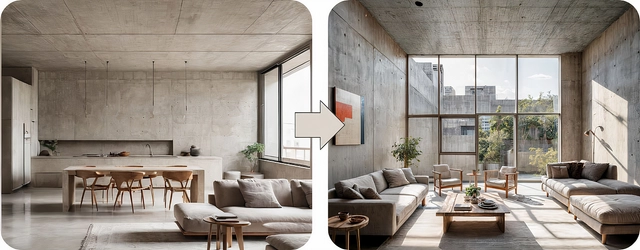
| |
“A spacious brutalist apartment with an open-plan layout, featuring raw concrete walls with a central minimalist living area, a sofa in neutral tones sits against the concrete backdrop, a wooden coffee table with a natural finish, floor-to-ceiling windows allow natural sunlight to stream in, casting subtle shadows across the polished concrete floors, warm ambient lighting, natural sunlight streaming through large windows, cinematic photography, wide-angle shot ” |
As a text-based tool, Describe is particularly dependent on the phrasing of the prompt. Positional descriptions allow for better composition, but users can also upload an input image as reference. Unlike other tools, Describe does need textual input on the spatial relationships between the main subjects of the composition, to help the AI generate a more structured and realistic composition.
The composition settings can only be used when there is a reference image, as they will define how much the product must depart from its style. The reference image in the Describe tool serves only as a style reference, as the tool introduces more creativity and will focus on capturing style rather than the original image’s depth or edges.
If the user wishes to preserve the structure of the reference image, they can experiment with the Render tool too.