D5 Render is a free real-time ray tracing renderer for 3D modeling professionals in architecture, landscape, interior design, engineering, and more. With customizable parameters to control the size, density, and random size of assets placed with Asset Tools, it is possible not only to speed up your work but also to come to an ideal effect, to present as a result the assets in a most natural manner. D5 keeps the asset collection updated to easily grab suitable models from the built-in library.
D5 Render has enabled the following easy-to-use tools inside the software, so there is no need to install any other plugins to achieve the effect you want.
Brush
- Select Brush (and the Asset Library will pop up)
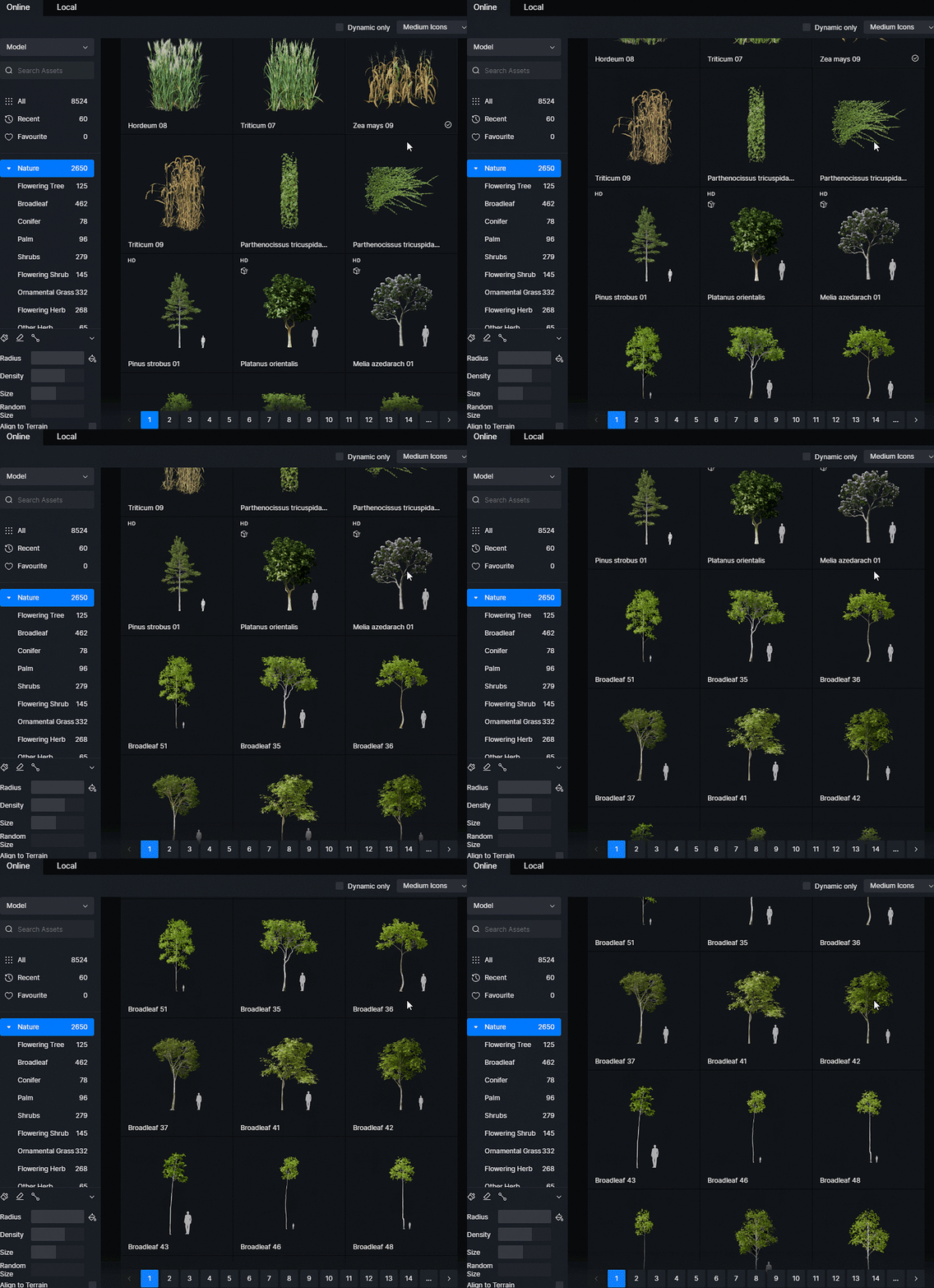
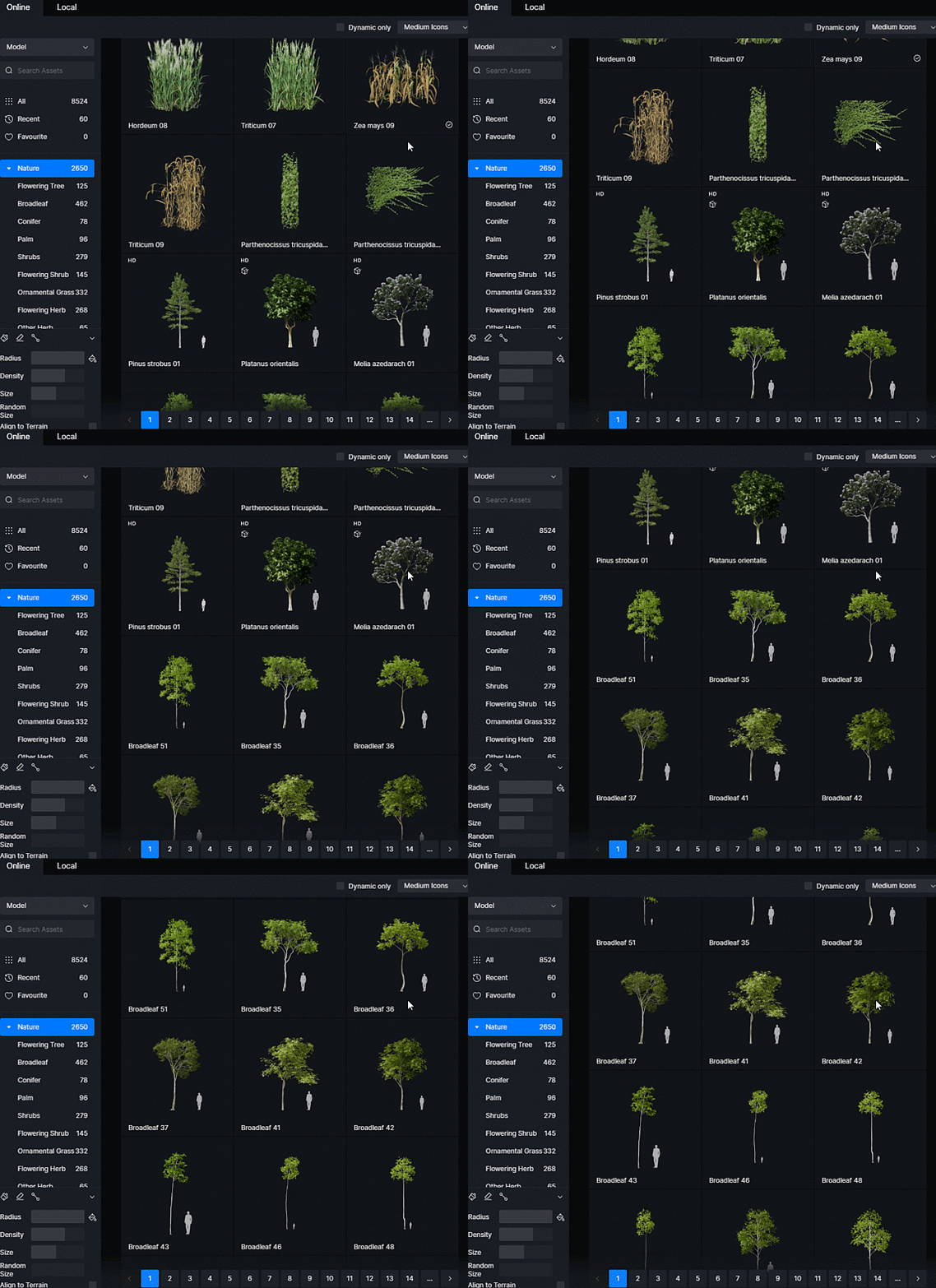
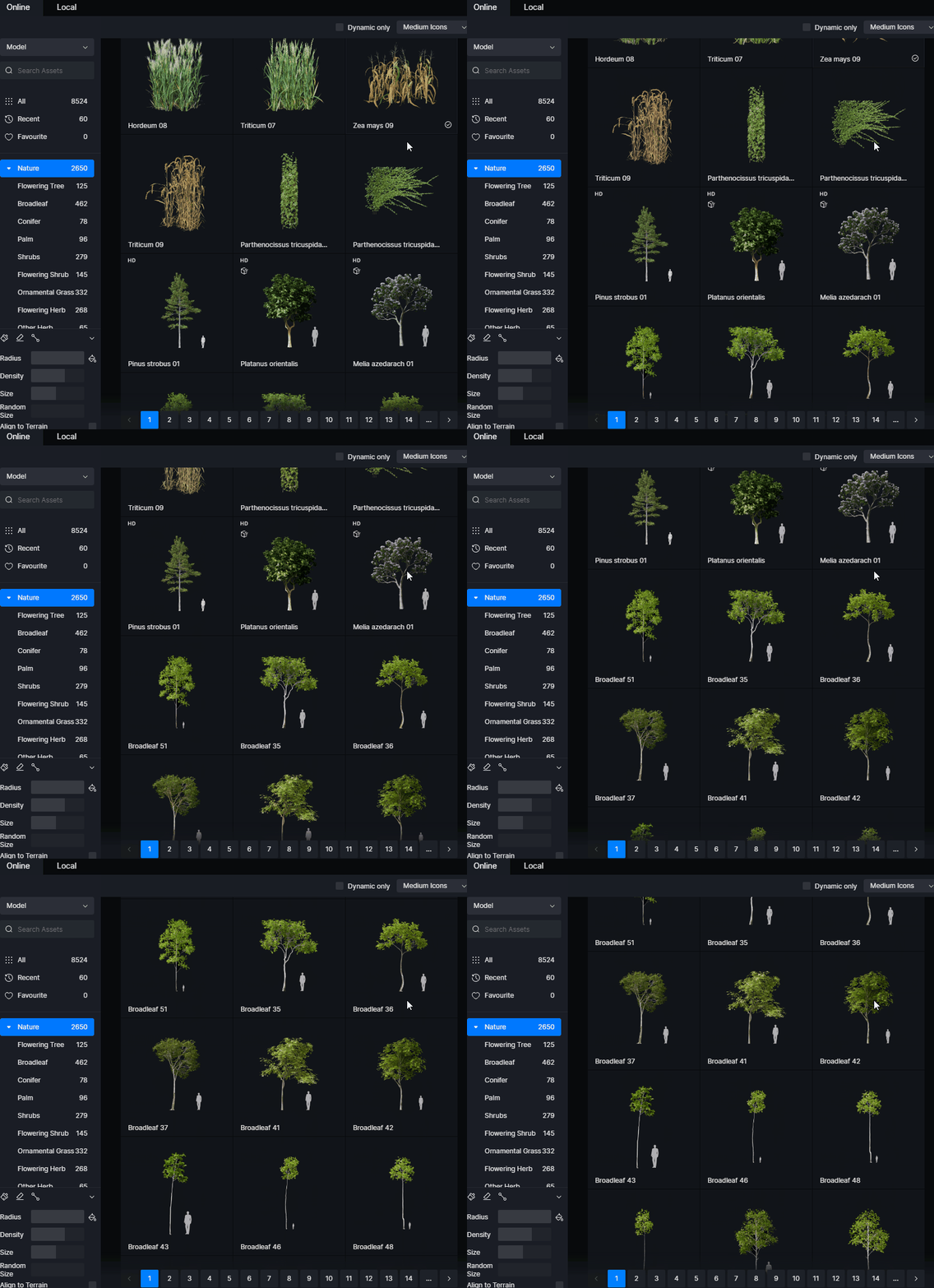
- Choose assets from the Nature category (at least 1 type, at most 6 types at the same time)
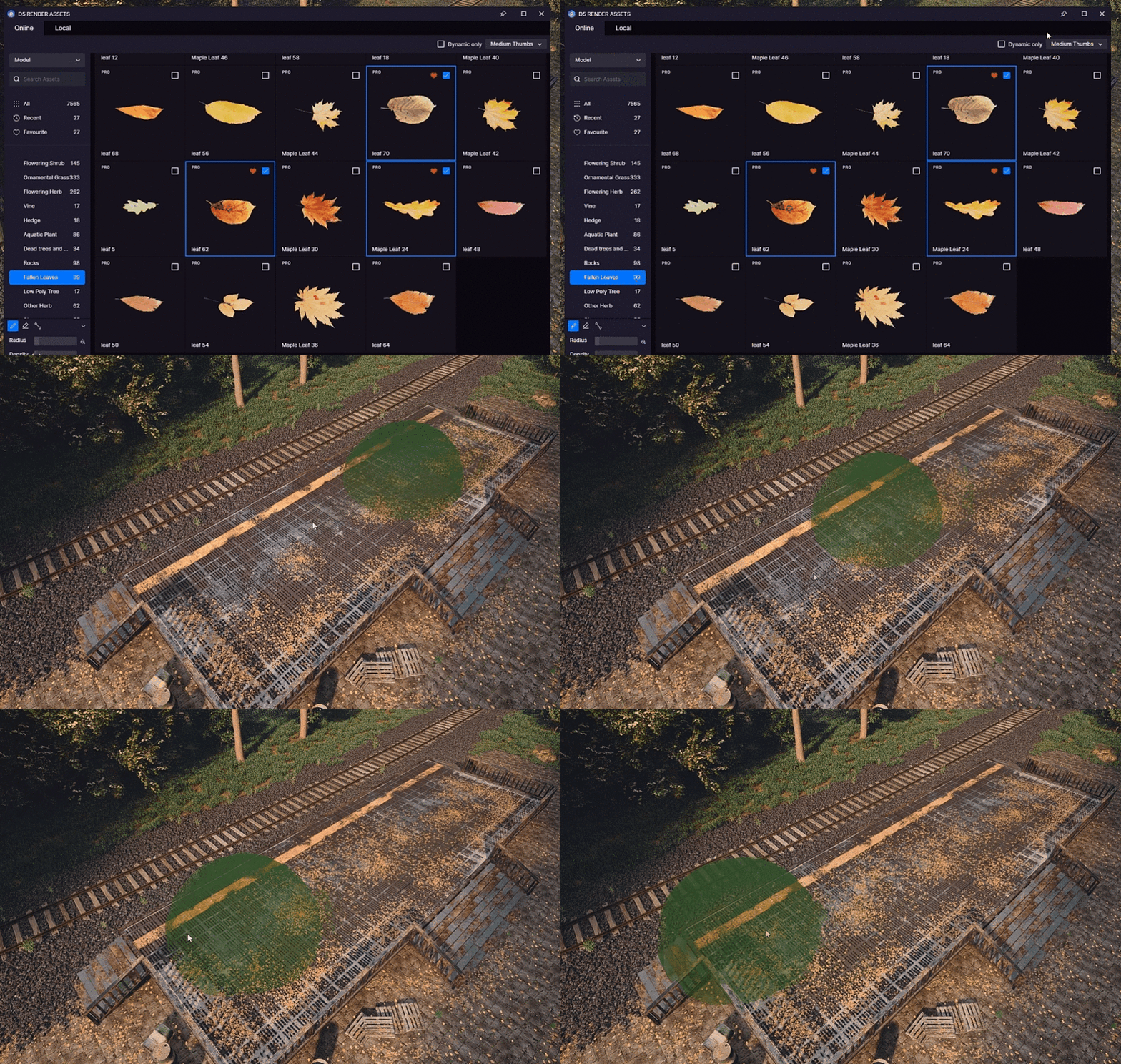
- Customize your brush (radius, density, size, random size, alignment to terrain)
- Start brushing
To activate the Brush tool, you can also open the D5 Asset Library-Nature category, pick an asset, and go to Brush at the lower left (shortcut "B").
The brush radius in D5 will automatically adapt to the screen size of the viewport, so it can be big enough for even a large aerial view rendering. All you have to do is to zoom out a bit in the viewport.
Scatter
The Scatter tool shares the same parameters as the Brush tool, and you can simply set the brush radius to max to activate it. Click on a surface, and it will be scattered with the selected assets. To remove brushed/scattered assets, you can use D5's Brush Record or Eraser tool.
Path
Nature (plants, trees, rocks, etc)
- Select Path
- Choose Nature assets to use (up to 6 types)
- Draw a path
- Set the number of items, direction, random spacing, size, on the ground, and other parameters for the path/assets on a path
- Nature category that consists of 2650+ ready-to-use models
Others (people, cars, animals, etc)
- Select Path Tools (Character/Vehicle/Animal)
- Select the assets (up to 18 types)
- Draw a path
- Customize the number of lanes, width, speed, density, random car paint color, car light on/off, and left/right-hand drive for the path/cars on the path
Software Compatibility
- SketchUp
- 3ds Max
- Revit
- Archicad
- Rhino
- C4D
- Blender