Rhino models often change throughout schematic and design development as geometry, materials, landscape surfaces, and spatial relationships are tested. D5 Lite for Rhino integrates real-time rendering and AI-assisted visualization into Rhino 8, allowing these changes to be evaluated visually while the model remains editable.
The following workflow uses Real-Time Rendering for evaluating the current model and AI Generation for exploring alternative directions.
1. Start with the Rhino Model
 |
| Install and set up D5 Lite for Rhino via the D5 Launcher |
Continue developing the project using the existing Rhino structure, including layers, blocks, surfaces, and other geometry. D5 Lite does not require a separate model for visualization.
After installation through D5 Launcher, D5 Lite can be opened by entering D5Lite in the Rhino command line or selecting the D5 Lite toolbar button. The model then synchronizes with the D5 Lite viewport.
2. Evaluate the Model with Real-Time Rendering
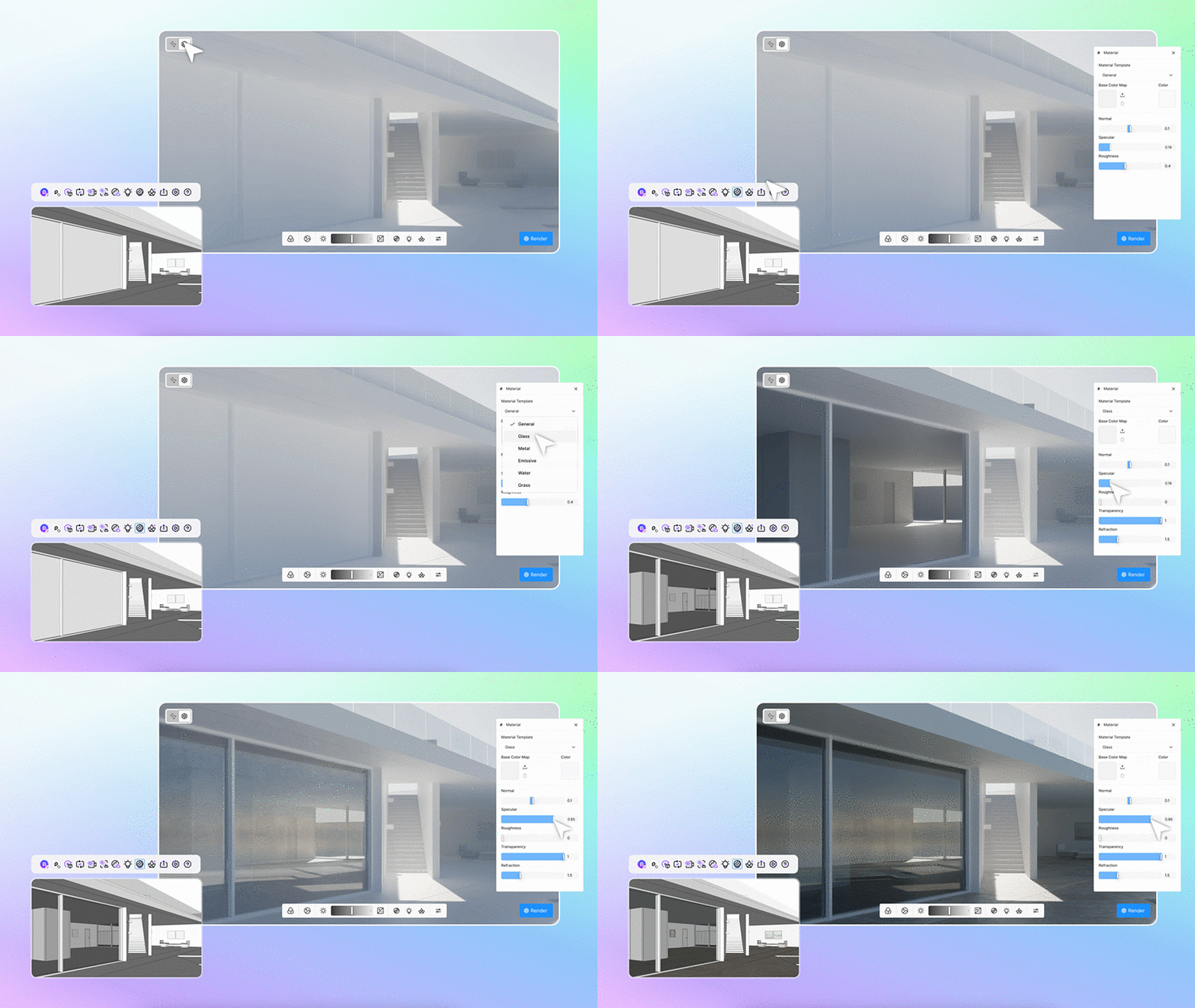 |
| Get real-time PBR material feedback during concept modeling with D5 Lite for Rhino |
Select Real-Time Rendering to review the actual Rhino geometry with PBR materials, lighting, shadows, and environmental settings.
 |
| Adjust sun and lighting settings in real time using D5 Lite Render Mode for Rhino |
Materials and lights can be adjusted while modeling, while Geo Sky can be used to set environmental and daylight conditions. Changes are reflected in the viewport, allowing material combinations, lighting conditions, and spatial relationships to be evaluated as the geometry develops.
3. Explore Alternatives with AI Generation
 |
| D5 Lite's AI Generation mode transforms a simple Rhino massing model into a detailed architectural concept |
When additional design directions are needed, switch to AI Generation. The current Rhino viewport can be used as the basis for generating alternatives through architectural, landscape, or interior presets, text prompts, or reference images.
This mode can be used to explore variations in architectural character, materials, landscape, interior treatment, or atmosphere before these ideas are developed further in the model. AI processing takes place in the cloud.
4. Return to the Model to Evaluate a Direction
AI-generated images can provide references for possible directions, while Real-Time Rendering displays the actual Rhino geometry.
After identifying a direction, modify the relevant geometry or materials in Rhino and return to Real-Time Rendering to evaluate the result under defined material and lighting conditions.
This creates a recurring workflow: Model → Visualize → Explore → Evaluate → Refine
The sequence can be repeated as the design develops.
5. Add Context as the Design Develops
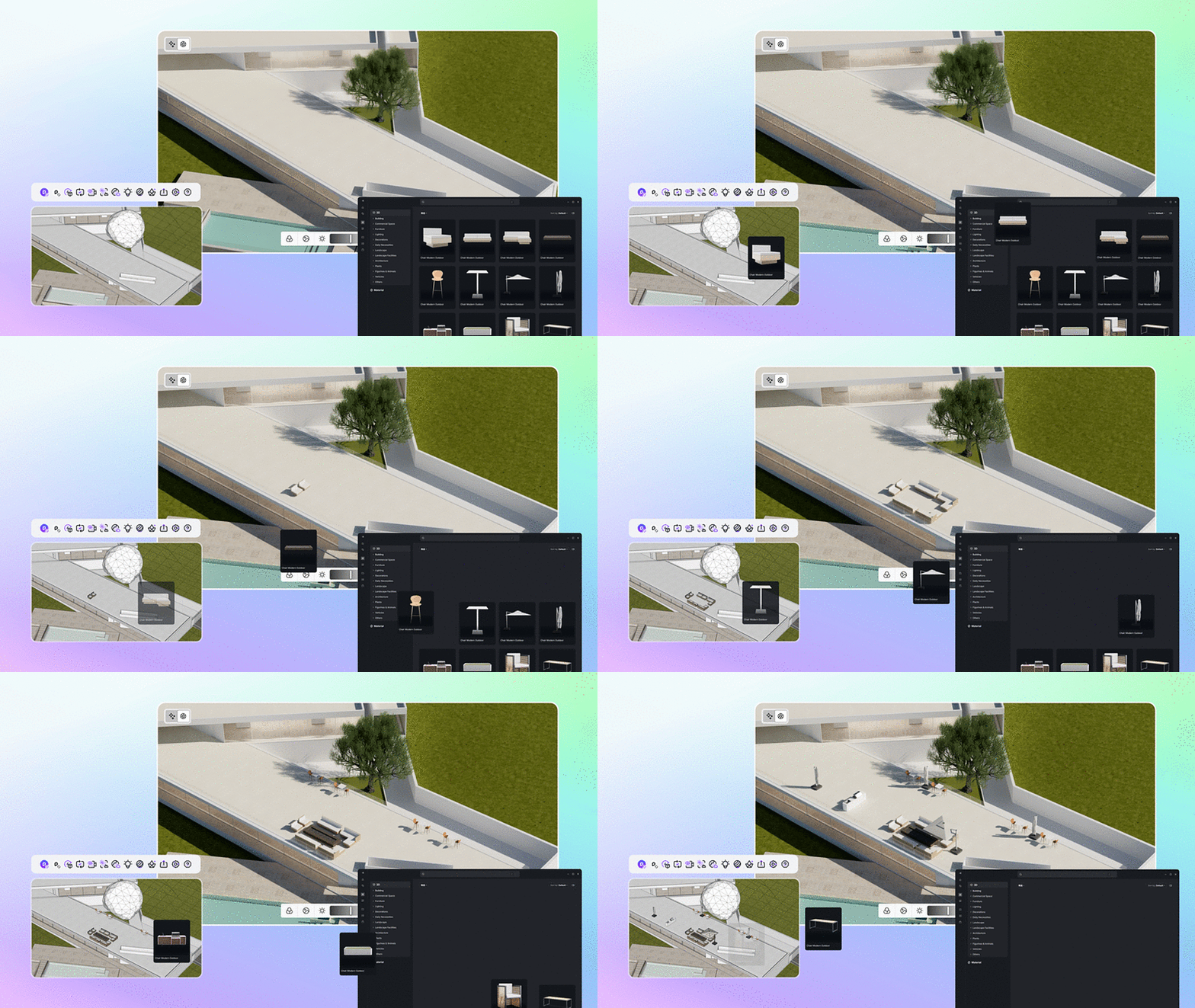
Vegetation, furniture, entourage, and other assets can be introduced as proxy models while the Rhino geometry remains editable. Materials, lighting, and Geo Sky settings are stored in the .3dm file, allowing the visualization setup to remain associated with the Rhino project when the file is shared.
6. Continue the Scene in D5 Render
When the project requires high-resolution still images, animations, advanced detailing, or Interactive Presentation, the scene can be transferred to D5 Render through one-way synchronization.
| |
| Seamless commercial workflow connecting D5 Lite for Rhino to D5 Render for high-quality architectural visualization |
Materials, lighting, proxy models, and Geo Sky settings are carried into D5 Render, allowing the visualization setup established during Rhino design development to continue into presentation production.